Animation performance is a key part of a polished user experience, but it is often overlooked. It is easy to get caught up in making a site interactive, but poor animation choices can hurt your site's performance. In this article, we'll cover what web animation is, the common performance issues, and how to fix or avoid them.
This article is solely focused on web animation performance if you want to go deep into web animations, I highly recommend this article by MDN.
What is Web Animation?
Animation is the gradual change of an element’s appearance or position over time to create the illusion of movement. This can be done using CSS animations (via @keyframes), CSS transitions (when property values change), or JavaScript (using libraries like GSAP or the Web Animations API).
When used well, animations make a website feel alive and can significantly improve the user's experience and flow.
What is Web Performance?
Web performance on the other hand refers to how fast and smoothly a website loads and responds to user interaction. It is often your page's first impression.
According to Google, 53% of mobile users will abandon a site if it takes more than 3 seconds to load. Enhancing your site's speed is critical for increasing conversion rates and creating a smooth user experience.
To understand what slows down an animation, we first need to look at how the browser renders content. This is known as the rendering pipeline
Understanding the Browser Rendering Pipeline
To display anything on a webpage, the browser must go through the following steps:
- —Style - first, it has to calculate the styles that apply to each element.
- —Layout - next the browser calculates the geometry and position of each element (its size and location on the page).
- —Paint - then the browser fills in the pixels for each element in its own layer. This involves drawing out text, colors, images, borders, and shadows.
- —Composite - The browser assembles all the separate "painted" layers and draws them to the screen in the correct order.

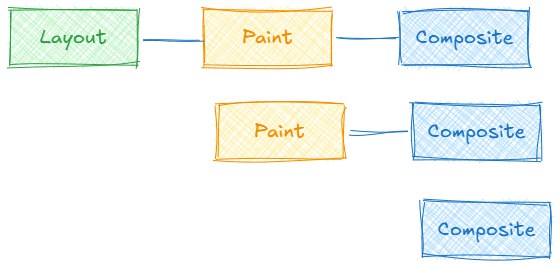
An animation doesn't always trigger every step, but these steps run in order. Which means:
- —If a change triggers Layout, it must also trigger Paint and Composite.
- —If a change triggers Paint, it will also trigger Composite.
- —If a change only triggers Composite, no other steps run.
This dependency is why some animations are "cheaper" (more performant) than others. Animating a property that only triggers Composite is always encouraged.
Composite and Non Composite Animations
Composite Animations
These are the ideal, high-performance animations. They only trigger the Composite step, bypassing Layout and Paint entirely. Example of these are transform, and opacity.
The browser can run these changes on a separate compositor thread, which frees up the main thread (where your JavaScript runs) from doing the work. This is why they feel so smooth.
For a complete list of which properties trigger which steps, CSS Triggers is a great resource.
.box {
  width: 100px;
  height: 100px;
  background-color: #947ef7;
  position: relative;
  animation: move 3s infinite;
}

@keyframes move {
  0% {
    transform: translateX(0);
  }
  100% {
    transform: translateX(200px);
  }
}
.box {
width: 100px;
height: 100px;
background-color: #947ef7;
position: relative;
animation: move 3s infinite;
}
@keyframes move {
0% {
transform: translateX(0);
}
100% {
transform: translateX(200px);
}
}Let's analyze this in the Chrome DevTools Performance panel. To open it, right-click and select Inspect, then find the Performance tab. If you don't see it, press Cmd+Shift+P(Mac) or Ctrl+Shift+P (Win) and type "Show Performance". Click the "record" button, let the animation run a few times, and click "Stop."
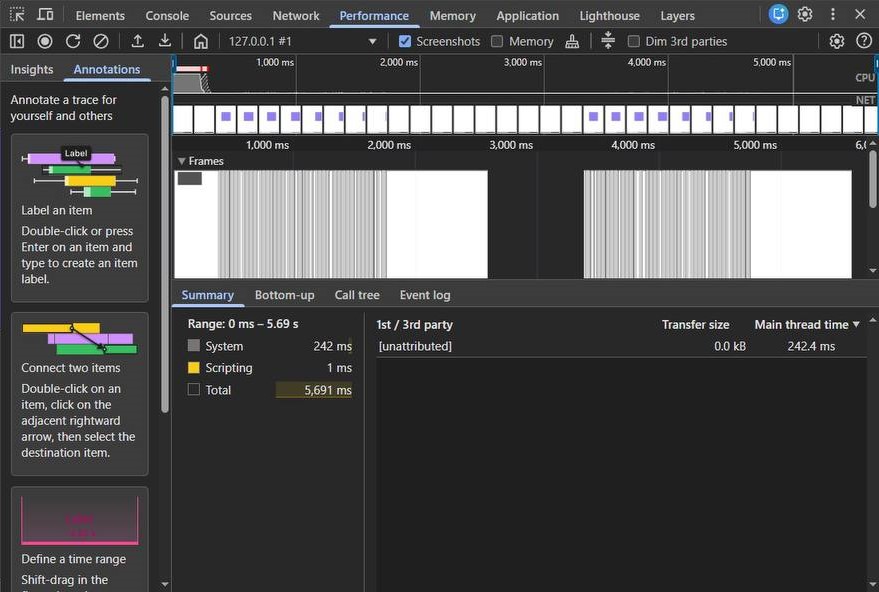
You'll see in the summary that there are no "Layout" or "Paint" events firing on every frame. This is exactly what we want.
Non Composite Animations
Avoid these animations whenever possible. They force the main thread to run Layout, Paint, and Composite on every single frame_.
This happens when you animate properties that change an element's geometry, like width, height, margin, or positioning properties like top and left.
.box {
  width: 100px;
  height: 100px;
  background-color: #947ef7;
  animation: move 3s infinite;
}

@keyframes move {
  0% {
    margin-left: 0;
  }
  100% {
    margin-left: 200px;
  }
}
.box {
width: 100px;
height: 100px;
background-color: #947ef7;
animation: move 3s infinite;
}
@keyframes move {
0% {
margin-left: 0;
}
100% {
margin-left: 200px;
}
}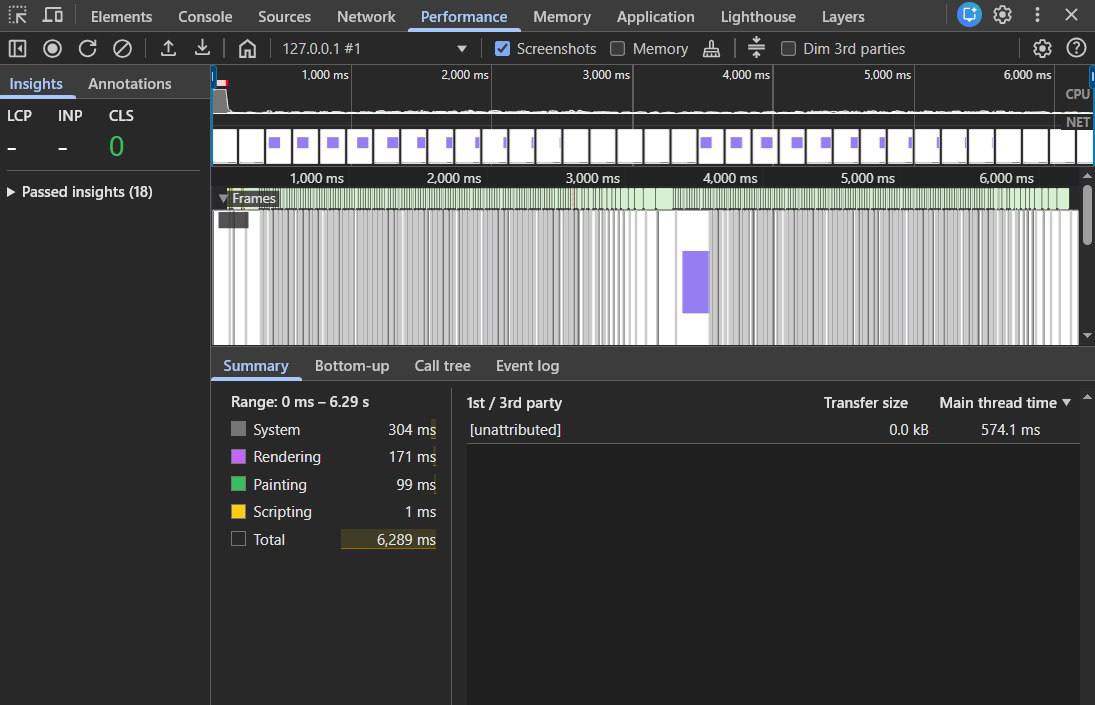
In the performance trace for this code, you'll see the "Layout" and "Paint" events. This is the browser doing far more work than necessary.
Best Practices
1. Animate transform and opacity Instead
Instead of animating width or height, use transform: scale(). Instead of animating left or top, use transform: translateX() or transform: translateY(). These properties are handled by the compositor thread and skip the expensive Layout and Paint steps.
2. Use Tools to Find Issues
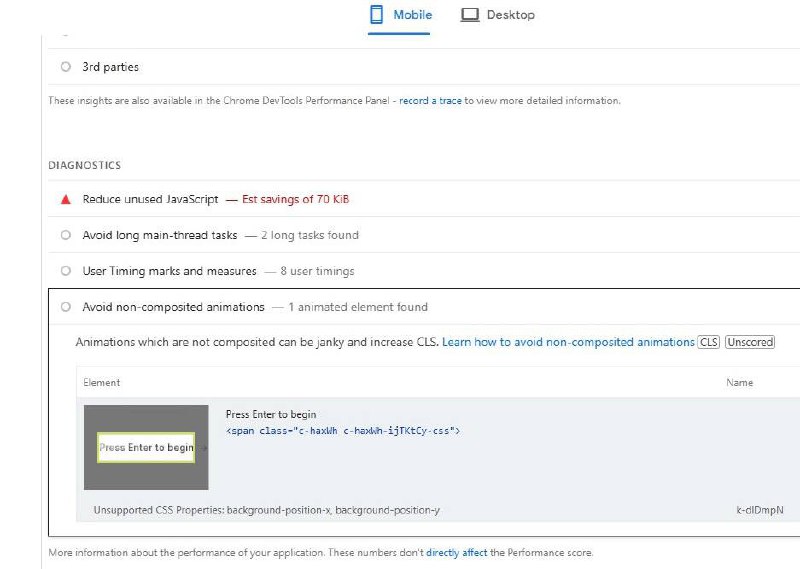
Google's PageSpeed Insights is a great tool for analyzing a live page. It will often flag "Avoid non-composited animations" under its diagnostics, pointing to the exact elements causing the problem.
3. Use will-change (Sparingly)
The will-change CSS property is a hint to the browser that an element is about to change. The browser can then perform optimizations before the animation starts, like moving the element to its own compositor layer.
.box {
  width: 100px;
  height: 100px;
  transform: scale(1.2)
  will-change: transform;
}
.box {
width: 100px;
height: 100px;
transform: scale(1.2)
will-change: transform;
}Don't apply will-change to everything. It reserves system resources, and overusing it can hurt performance.
Conclusion
Web animations are a delight to the user when they're smooth, but a source of frustration when they're not. By understanding the rendering pipeline, you can make conscious choices to animate "cheap" properties like transformandopacity. Stick to compositor-only changes, and you'll keep your main thread free, your frame rates high, and your users happy.